Royal Kludge R75Pro Tri-Mode Keyboard
A great looking keyboard that does it all and supports VIA? Yes please!

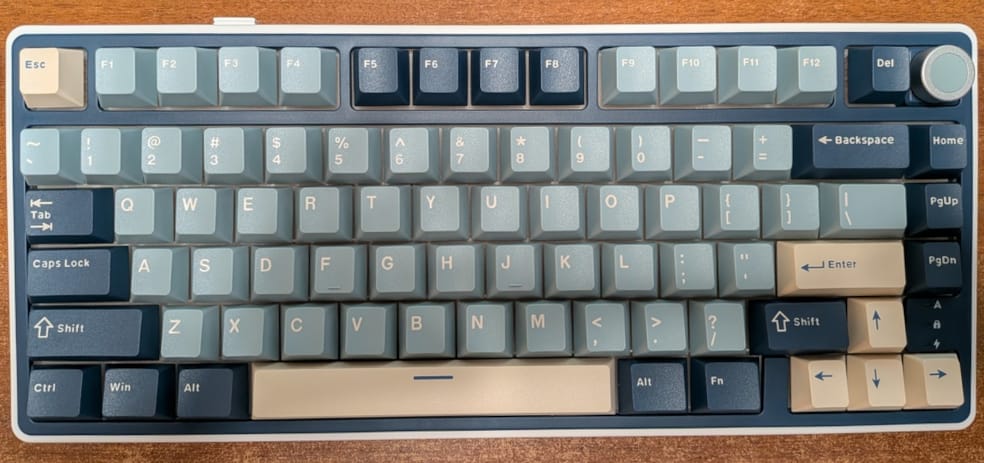
Table of Contents
Overview
The Royal Kludge R75 Pro Tri-Mode is quite a name; but it is what it says; a 75% keyboard which has three modes; USB, Bluetooth, and 2.4GHz dongle. It is RGB backlit, comes with doubleshot keycaps, linear switches that are pre-lubed, and is hot-swappable. It comes with a 4000mAh battery, solid plastic case and housing, and has multiple layers of gaskets and foam and insulation. It comes with a volume knob which can be optionally swapped out to give you an extra key (Royal Kludge have included an extra End key in the package). And to top it off; the keyboard is programmable using VIA which makes it exceptionally flexible to tweak key mapping or adjust colors.
If you're looking for a keyboard for daily use or for gaming, this is an excellent, flexible, and easily modifiable keyboard, and you can't go wrong with the value and cost. But read on for all the nerdy details!
I've done a bit of research, and it appears that there have been several similar 75% keyboards from Royal Kludge over the years, but this is the latest model with a flat volume knob encoder, wireless support, and supports VIA for programming instead of using a Windows application. I'm actually otherwise unsure how to refer to this exact model for someone who has seen a similar model in the past, or perhaps someone in the future looking at this article to compare against the current models. If it's useful, mine has an FCC ID of 2A4MQ-R75PRO and an IC number of 29367-R75PRO.
Unboxing and contents
The keyboard shipped from the Royal Kludge US distributor, and it came in a fairly typical bubble envelope, but it was well taped and sealed. The box was slightly crushed on one corner, but was no damage to the contents.
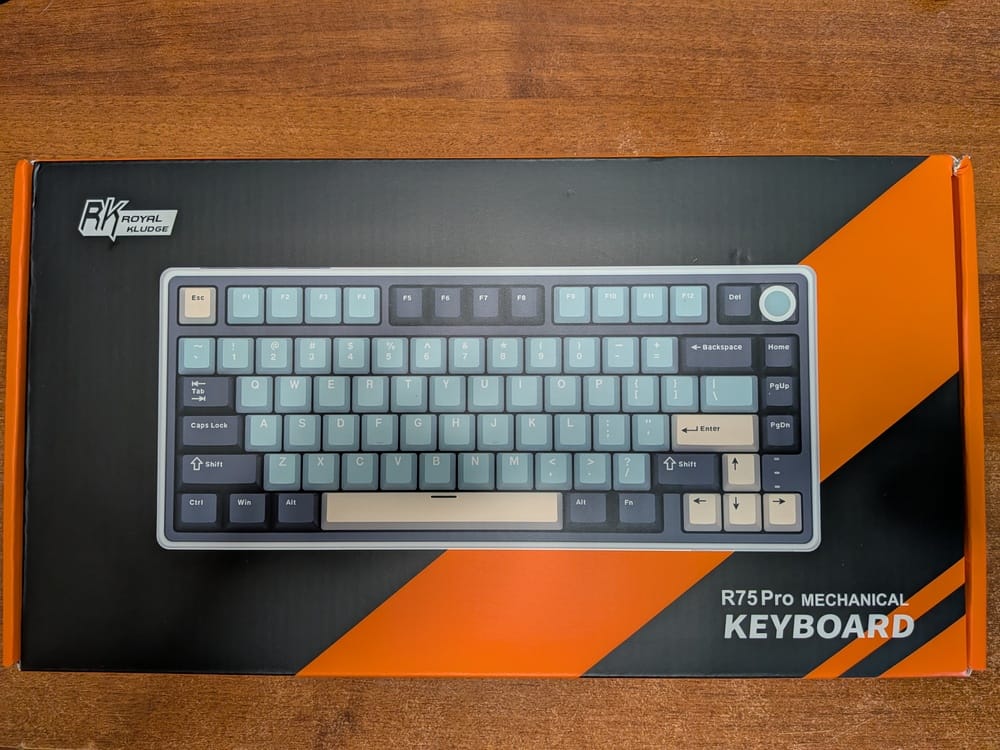
The box itself is fairly simple in design, with a picture of the actual keyboard, but otherwise has very little information on the box besides the basic model number and some bar codes.
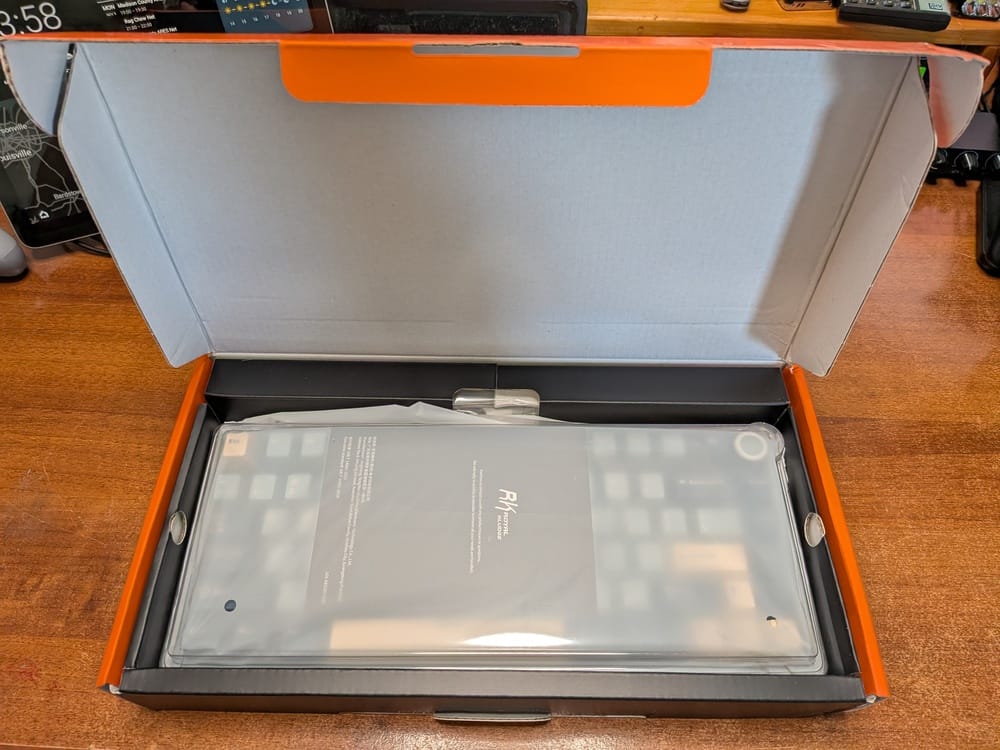
Inside the box is a plastic keyboard cover which fits over the keyboard and even has a cut-out for the USB cable and switches. I occasionally see this come with keyboards, and it's always appreciated as it's made to fit on the specific keyboard to keep out dust, cat hair, or even an errant spill at the desk.
Also included is a brief user manual, a Royal Kludge branded combo keycap and switch puller, a USB A to C cable, four extra switches, a spudger tool, and an End keycap if you choose to use it instead of the volume knob. What's sort of surprising is that there was no included quick start guide. I often see these included with keyboards to explain initial use of the connectivity modes, lighting, etc. That said, included manual of course explains all the keyboard functions and most quick start guides go into the recycling bin so I can understand saving a little money here by not including it. The USB cable is reasonably thin, but 'rubbery' and fairly stiff, but it does work fine. The USB port on the keyboard is not deeply recessed so any USB cable will work just fine.
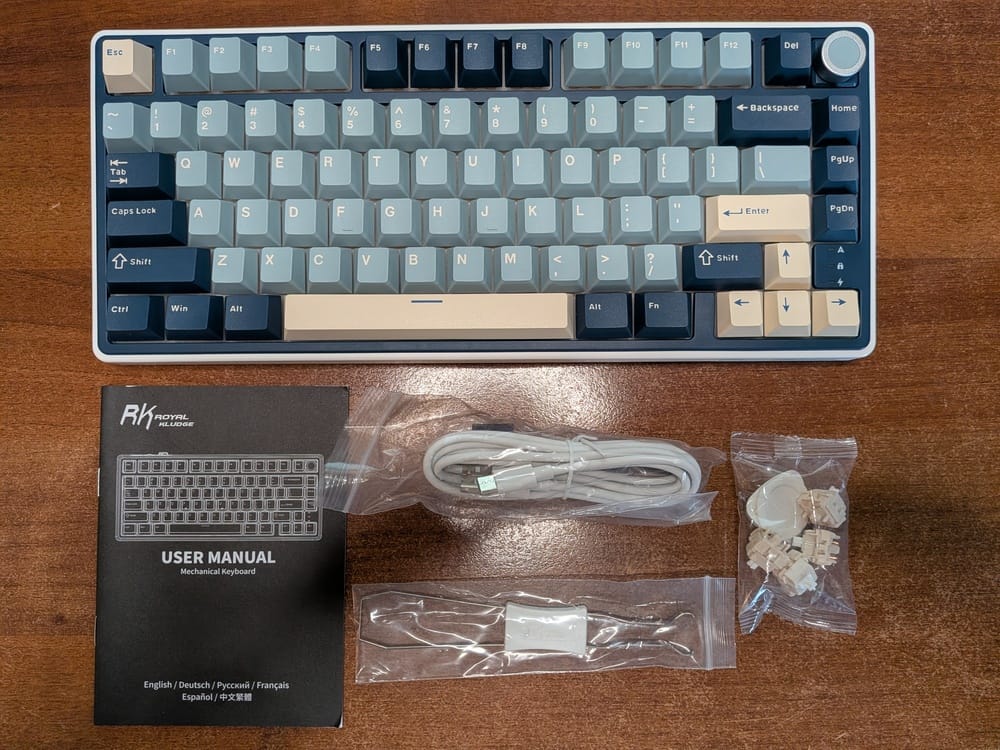
A quick glance at the manual looks exactly like the one that I found on the Amazon listing for the keyboard and is in English, German, Russian, French, Spanish, and Traditional Chinese. The official Royal Kludge website has a different manual that looks more like what I would have considered a quick start guide. I provide a link to a Google Drive share near the end of this document to both files in case one or the other become unavailable, however they both appear to have the same information.
Battery percent out of box was about 68% as reported by Bluetooth, so this is an excellent battery percentage to be shipped. I looked on the packaging attempting to figure out a date of manufacture, but I offhand don't see it anywhere. If I ever open up the keyboard I'll look for something inside, as I'm curious when it was manufactured. I love that the keyboard reports battery status over Bluetooth, which will make it easy to monitor it and keep it appropriately charged. The keyboard also has a built-in function which will show the battery percent on the keyboard by hitting FN-Enter.
First Impressions
I took a quick look at the keyboard before using it and found that it looks identical to what you see online; the colorway colors match exactly what I have seen on the official website. I've often seen the colors of a keyboard marketing don't seem to quite match reality but in this case it does. The keyboard has a very solid feel and has a good heft at 1lb 11oz (765g, however, my scale does not do grams, so this weight is slightly approximate).
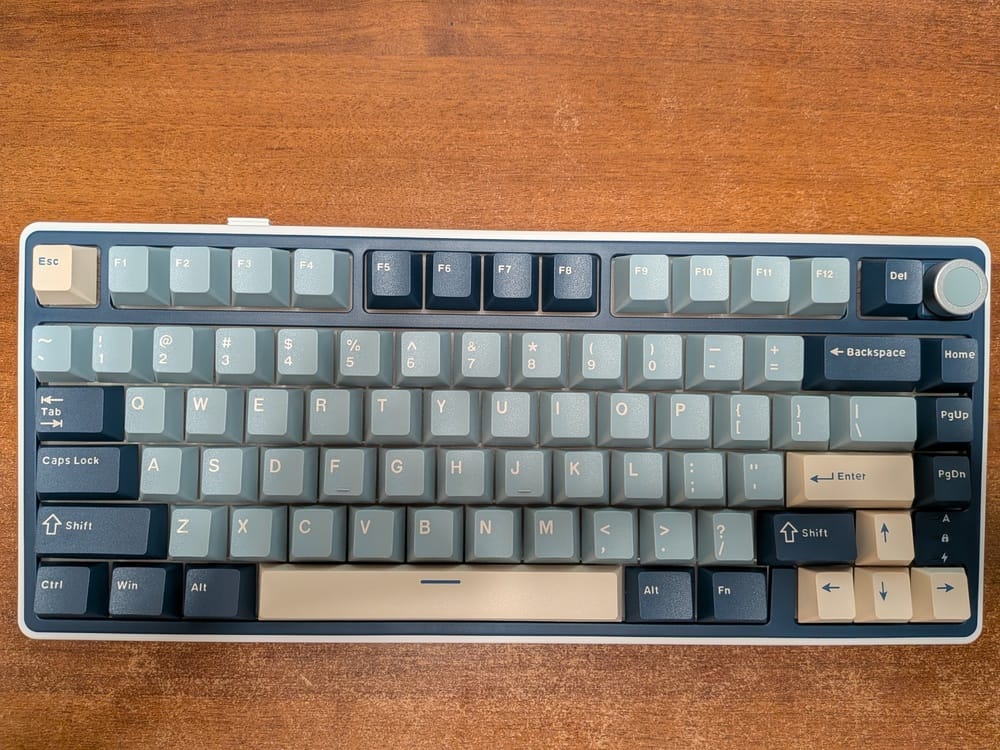
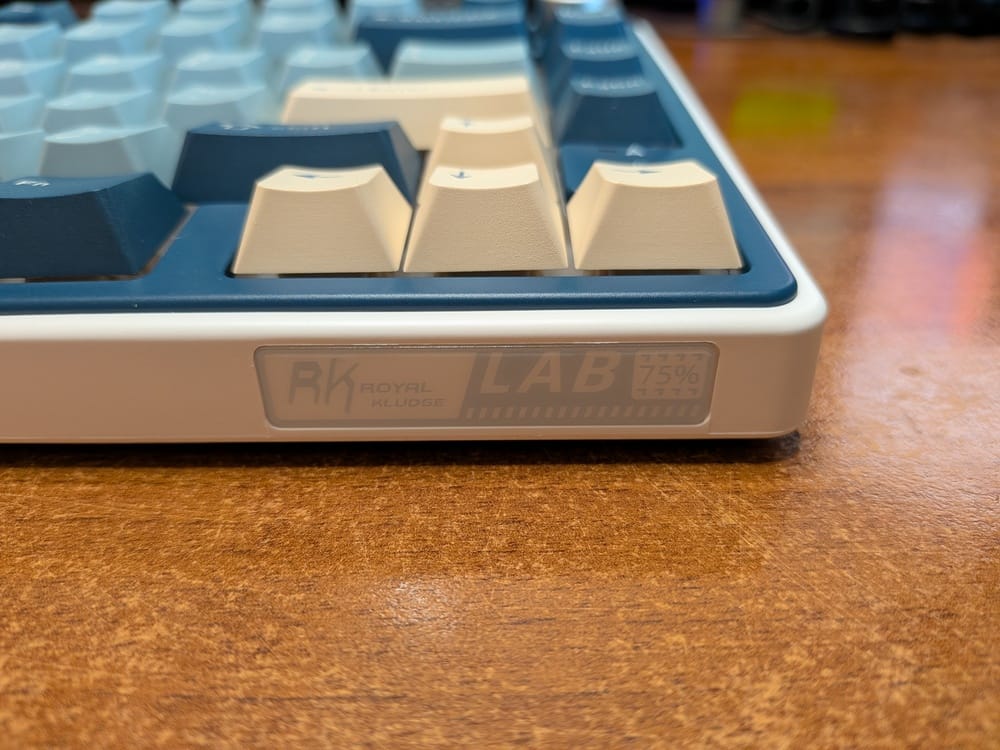
The main keyboard bezel is a neutral white color, but has a dark blue inner bezel that very closely matches the dark blue keycaps that are on most modifier keys as well as the inner F keys. Esc, Space, Enter and Arrow keys are a light cream color, with the remaining keys are what I might call robin egg blue, perhaps more muted, with more blue than green in them. Overall a very nice arrangement of colors and is very pleasing to the eye and will not be distracting. I personally don't like keyboards with all white keys as I notice the keyboard in my line of vision all the time. I'm sure with time I would ignore it, but, my preference is generally black or otherwise dark keys. These however, are rather pleasing and attractive, and I find the overall look of the keyboard to be quite good-looking. There is a fairly subtle RK badge on the front right corner of the keyboard, but it is so subtle you likely won't even notice it day to day.
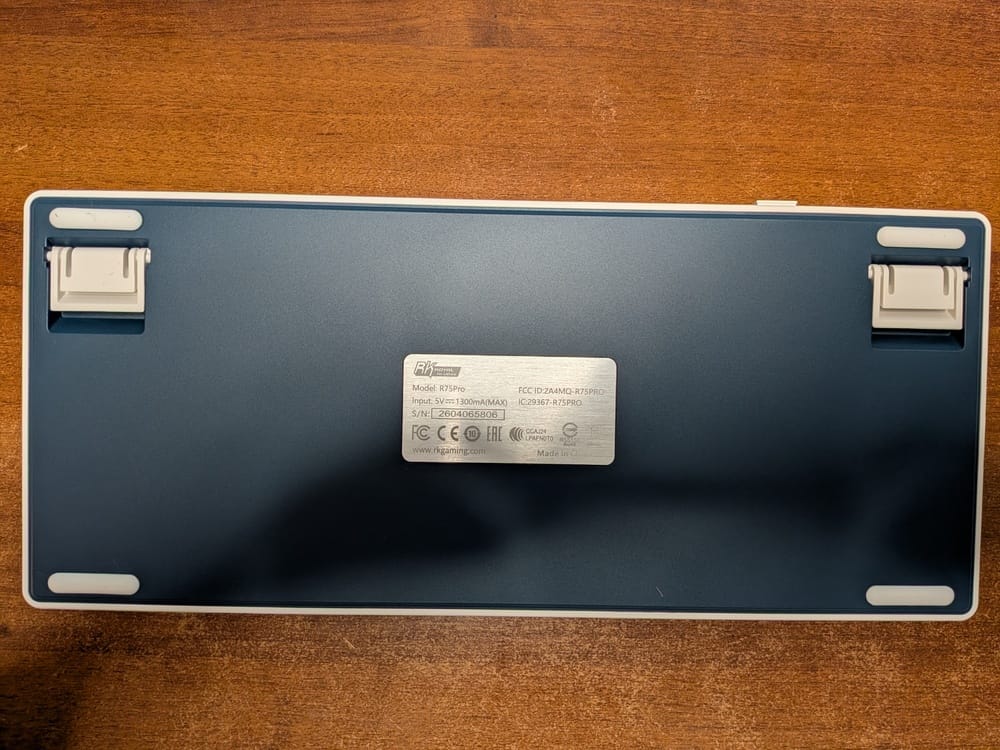
The back of the keyboard has a dark blue panel that matches the inner bezel on the top side, has two rubber feet near the front of the keyboard and two dual-level feet at the back of the keyboard, of which also have rubber pads on both the small and tall legs. The information sticker on the back of the keyboard is a brushed metal appearance and is exceptionally difficult to photograph, but it has the basic model, serial number, FCC ID, etc.
The front inner blue bezel is 20mm high, and the rear inner blue bezel is 30mm high (with the feet retracted), with a length of around 130mm which gives the top face of the keyboard a minimum of 4.4% positive tilt. With the smaller legs down, the rear of the keyboard rises to 35mm which changes the tilt to 6.6% and with the larger legs down it rises to 40mm, giving the keyboard a maximum tilt of 8.7%. This keyboard has no front feet so it does not provide a way to give it zero or negative tilt, however, I have found the default 4.4% to be very comfortable.
The keycaps themselves appear to be double shot and are 1.6mm thick, which gives them a very nice tone in my "drop test" where I drop a keycap from an inch or so above my wood desk and see how they sound. Some keycaps have a very high-pitched sound, almost like glass, when dropped, and I have found keycaps that have that sound profile seem to have a higher pitched sound profile while typing and to sound less pleasant. These will not have that issue, as they are quite thick. The legends on them are offset slightly off center to the top left, slightly lower than some keyboards but looks perfectly natural to me. All writing is sharp with clean corners and edges and nothing stands out as looking poorly designed. I have seen some keycaps that either the molds or the molding process produced keys with slightly irregular lines and corners and I see none of that here. The keycaps are not shine-through, but the LEDs are south-facing, so the colors show nicely at a normal typing position. Royal Kludge made a good decision going with a Cherry keycap profile, and it suits the included switches and overall profile of the keyboard itself. My previous keyboards all made me immediately start considering replacing the keycaps with better looking and/or higher quality ones, but these I have not given it a second thought. I would consider these to be as good or better than most affordable third-party keycaps. However, any standard 75% keycap set should work fine on this keyboard should you prefer to change them out.
Switches and sound
Before I talk too much about sound; I want to 'confess' that I typically use what some people call "noisy" Kailh Box Royal keycaps on my Mistel MD770, which is my primary desktop keyboard. They are tactile, unlubed, and I honestly consider them reasonably quiet, at least compared to some other tactile I have typed on and certainly quieter than any clicky switch. I can not stand cheap "Blue" clicky switches as I find they have an irritating 'snap' to them, and I've often described them as it sounding like you're breaking tiny pieces of plastic as you type. I also really don't like the way they feel, and so I personally have Kailh Box Pink or Box Jade on other keyboards as I do prefer a clicky key feel. I went with Box Royal on my primary keyboard as it was a good compromise on key feel and the sound generated as I knew I would be typing on the MD770 a lot. I work from home, wife is home doing work or studying, etc., and I generally felt a clicky switch on my primary keyboard would be fairly irritating.
I am personally not a linear switch type of guy, I don't know why, but to me pressing a keyboard key has to have some kind of feel to it. I am not sure where this preference cemented in my mind, but I grew up on Commodore 64's and had plenty of early experience on early IBM M keyboards with buckling spring key switches. It might have been the thought in my mind that the IBM's were "real" computers and that's how a keyboard should feel; I am really not sure. In the 2010 era, I used an IBM M keyboard at work and a Lexmark M15 keyboard at home, both with buckling springs key switches. In about 2020 I switched to the Mistel MD770 because I wanted a more modern keyboard. It initially came with Cherry MX Clear key switches, but I very quickly decided I did not like them and desoldered them and installed Kailh Box Royals and have used it every day for many hours a day since and have been very happy with it.
I have a Steel Series keyboard with Cherry MX Red switches in it that I use as a secondary/testing keyboard, and while it is reliable I find that my typing style and how I generally hold my fingers over the home row actuates the keys and I find other random accidental inputs and have the general feeling that I am not actually "typing" on that keyboard. It is difficult to explain, but it just doesn't give me the feedback that I prefer. If I had to use it daily I'm sure I would get used to it.
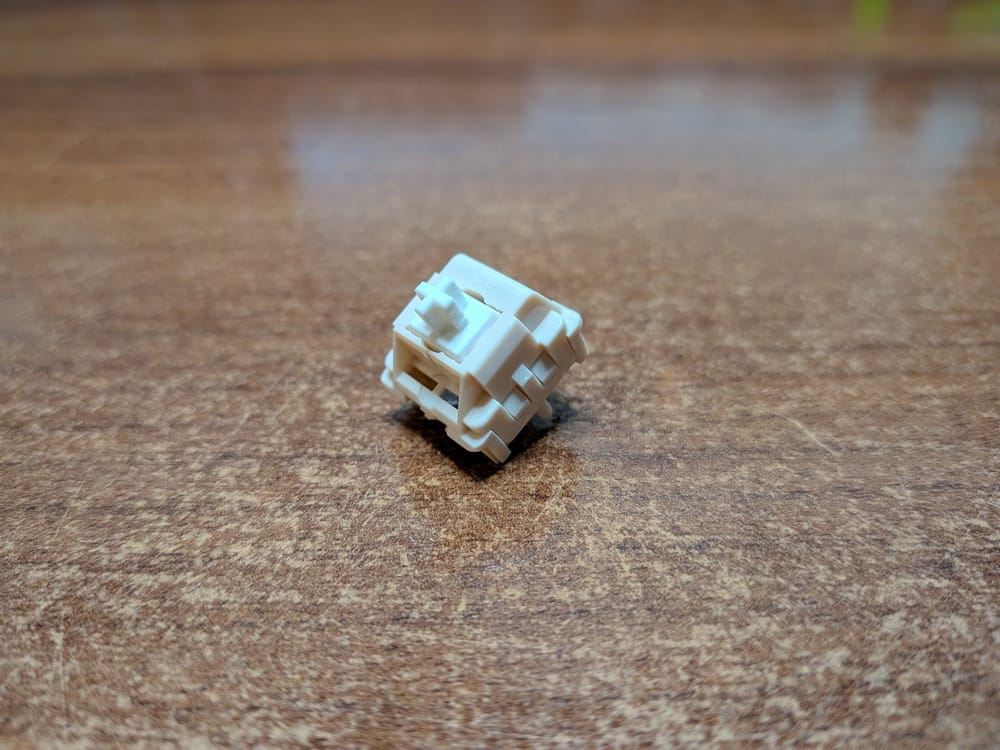
This all said; the linear Cream switches that come with this keyboard are quite well suited to the gaming market and are smooth, quiet, pre-lubed, and are quite nice to type on. They have a standard actuation of 2mm, but a slightly short overall throw of 3.4mm and only 45g of force. That said, I have so far not seen any accidental keystrokes, so the overall force curve of these must be slightly different from that of Cherry MX Red. I've compared the graphs that Royal Kludge provides for the Cream against those of the Cherry MX Red, and they look almost identical, so I'm not quite sure what to make of it. Nonetheless, for a linear, I find them quite decent switches.
So, what does it actually feel and sound like!?
As one would expect from heavily lubed switches, typing feels buttery. They are very quiet in motion, very smooth feeling, and feel very consistent to type on. I very will likely at some point swap these switches out for Box White, Pink, or Jade, but my initial testing and usage will be exclusively on the Cream switches pre-installed in the keyboard. If you choose to put in new switches, the design will work with any 3 or 5 pin MX style switch.
This keyboard is housed in a thick plastic case, has multiple layers of foam and gaskets and sound absorption padding, etc., plus heavily lubed linear switches which makes for a very thocky keyboard. I really don't have the ability to make decent recordings of the sounds, plus one really would need to have a library of other keyboards, switches, etc., to compare against, however, I am sure there are videos out there that have the sounds this keyboard makes. But, believe me when I say this is exactly what someone means when they say "thocky". Nearly every key has the exact same sound, be it an inner or an outer key, except for the space bar which has an even lower frequency thock when it hits. If a smooth thocky keyboard is your jam, the R75 is just that. The overall sound level this keyboard makes, however, is slightly louder than my other keyboards, but has a very pleasing sound tone.
The volume knob, it spins!
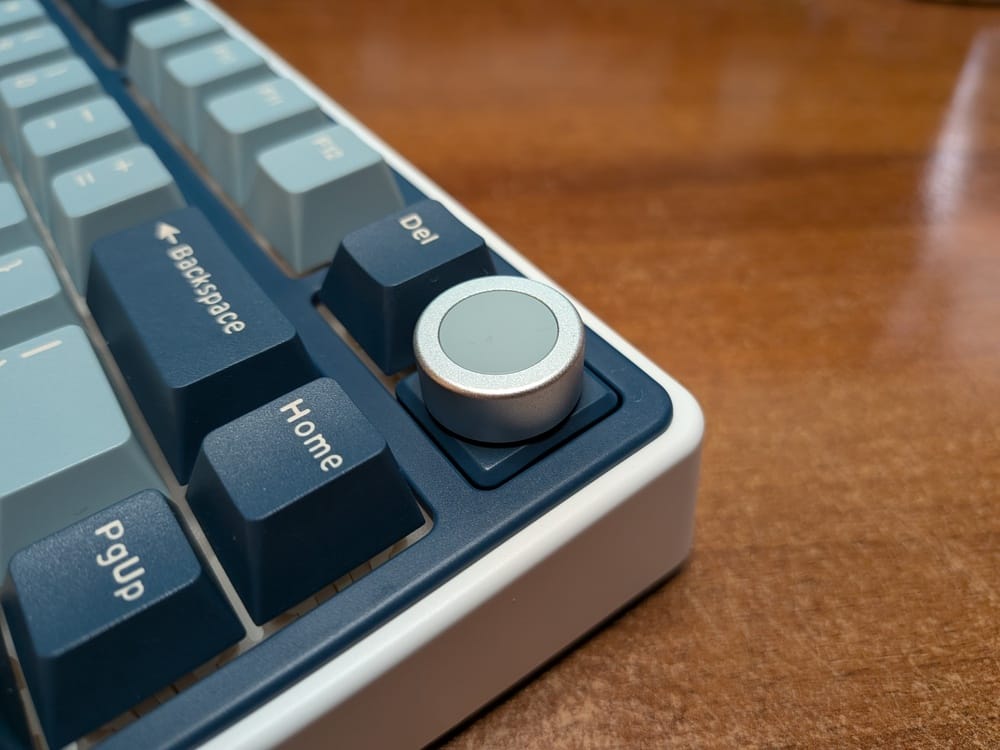
This keyboard also comes with a volume knob which is installed at the top right and by default adjusts volume and pressing it mutes audio. The edges of the knob could use some knurling or perhaps a rubber insert, as it's pretty slick and stiff to use, but it is handy to have, and I've found myself reaching for it more and more as opposed to my other shortcuts, or FN-F11/FN-F12. However, if you would prefer an extra key, you can remove the volume knob and replace it with a standard MX switch. The hot swap socket holes for the switch are not visible, as the foam is covering them, but you can put a key switch into the volume knob location and use the provided End keycap and have an End key instead of the volume knob. To remove the volume knob encoder, you will likely need to use a spudger to carefully pry it up out of the keyboard. Royal Kludge include one with the keyboard, just lift it up a little on one side at a time, and it comes out pretty easy. They also include four extra switches, so to insert a switch where the volume knob was you simply line up the switch like you're inserting it into any normal hot swap socket and push straight down, and it'll pierce the foam and into the socket. No programming is required for the End key to work. You could swap back and forth at any time, however I suspect most users will pick one or the other.
RGB and Backlighting
I won't go too much into lighting effects, but there are a 16 of them of on the keyboard via FN-\ that are pre-configured that you can choose from, and also includes a solid color scheme you can change the color of with FN-<
You can manually create a per-key custom light setup directly on the keyboard, but it's fairly tedious. The included manual explains it pretty well; you hit FN-1 to put it into the Custom color mode, FN-Backspace to go into the mode to set the colors, then you hit the keys you want to change the color of. Each key starts with the backlight off and each time you press a key it cycles through red, green, dark blue, yellow, purple, cyan, white, then loops back to off. It's not too bad to do, and I'm glad you can do it directly on the keyboard itself.
I think there might be a bug in how this works, however. I set up the colors the way I wanted them, they worked perfectly fine for a few days. But then I went to tweak it (ie: I hit FN-Backspace) and the keyboard defaulted to all lights off, and I had to set up every key again. I'm not quite sure why it does this, as it does maintain the custom lighting in each mode, power cycles, etc., but seems to always reset it when you go into the custom lighting mode setup again.
The keyboard also has two other static color modes that I still can't figure out what they're really intended for, but I assume it's something related to gaming. FN-2 or FN-3 just lights up various keys on the lefthand side of the keyboard. I do kind of like setting up 'blocks' of keys with different lighting, but generally have the lighting off unless I'm typing in the dark. I am a touch typist, but it can still be useful to just reach out and hit a key or two one-handed. Overall the colors are quite vivid, although not as bright as some keyboards I have seen. However, in a dimly lit or dark room they are very bright. There are 6 brightness levels; off and 1-5 and the differences between each level seem reasonably equal.
I have found that both manuals I have neglected to mention that FN-ESC can toggle RGB on or off without adjusting the backlight levels.
In VIA there are a number of preconfigured lighting modes, some seem to be the same, some different from the ones built-into the keyboard that you can choose with FN-\ but what does not seem possible in VIA is the ability to choose a per-key color scheme; you'll have to do that using the method above with FN-1 then FN-Backspace. To make sure I don't accidentally unset my personal color scheme, I will likely remap the FN-Backspace to another key I'm unlikely to hit.
Wireless Modes
Bluetooth
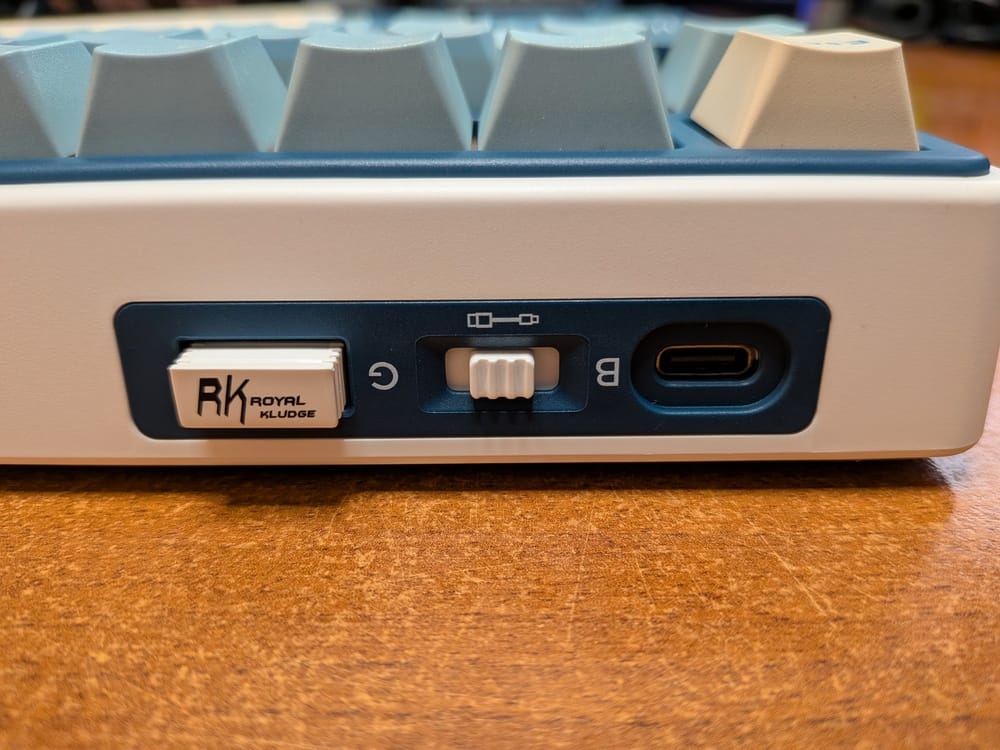
Bluetooth seems rock solid; which is terrific. I have had keyboards from other brands that the Bluetooth connectivity was spotty and resulted in occasional missed or hung input. I've used this keyboard on my desktop PC, Pixel Tablet, and my Chromebook for days now, and I've yet to experience a single problem. Pairing and switching between devices is quick, easy, and reliable, however there is one minor thing that I find interesting. I have been looking at the VIA JSON file that Royal Kludge provide, and it mentions 5 Bluetooth devices, but the keyboard by default only provides 3, mapped to FN-Q, W, and E respectively. Three is sufficient for most people, however, it is very handy to have a keyboard that'll do more as I have a pile of devices around the house I use for various things. After some experimenting in VIA, I don't think the 4th and 5th devices will actually function on this board; perhaps some other boards support it, and it was left in the firmware and/or JSON file. When attempting to switch to or enable pairing on the 4th or 5th device I added, nothing happened.
2.4GHz Dongle
The dongle seems to work quite well and connects quickly and is extremely reliable. I've typed on it for hours off and on and have not missed a keystroke, no hung inputs, no issues at all. And my 2.4GHz environment here is a mess; I have a ton of cheap IP Cameras, smart switches, smart bulbs, random IoT stuff, etc., so this is a fairly noisy 2.4GHz environment. Range also seems to be greatly improved over my Royal Kludge RK84 dongle, as that one I could really only use it when the dongle was plugged into the hub on my desk so that it was quite close to the keyboard. I have tested the R75's dongle from over 20 feet away, with multiple walls, a pantry full of cans and food, etc., no issues. However, keep in mind that if you plug the dongle into the back of a PC which is facing away from the keyboard, the signal might be blocked or interfered with, so if you have issues with the dongle there's always a chance you should locate it somewhere that isn't hidden behind a metal PC case.
It's interesting that the USB VID and PID are the exact same for the dongle and when plugging in the keyboard directly via USB. I would have to guess that the dongle is just a proxy for the USB connection. Without the keyboard connected, I don't even see the dongle on the USB bus.
When not in use, you can store the dongle in the keyboard case so you don't misplace it. It snaps smoothly into the case using magnets and is rather solid, yet simple to store.
Standby Mode
As for standby on Bluetooth or 2.4GHz dongle mode, I've so far found that if you have backlighting enabled it will turn the lighting off after 5 minutes, but the keyboard stays connected to the host, and you can immediately type with no delays or lost characters for 35 minutes in Bluetooth mode and, seemingly, indefinitely in dongle mode. On Bluetooth after going to sleep when hitting a key it automatically reconnected but did lose key inputs until it was fully connected, which took a few seconds. The dongle I have yet to see any disconnects from the PC that are obvious to me, and even 12 hours later, a letter typed instantly showed up on the desktop. I assume the keyboard does go to sleep in the dongle mode, but reconnection must happen instantly.
USB
USB mode is just what you'd expect, of course, but it does actually have a 'feature' some other keyboards don't have, and that is the ability to leave USB connected to a USB host (ie: not just a charger, etc.) and flip the mode switch to Bluetooth or to the 2.4Ghz dongle. I've used keyboards in the past that if they're active on USB, they won't switch to Bluetooth or the opposite; when plugged into USB they automatically connect to Bluetooth instead of using USB. This makes it quite easy to use a single keyboard to control a multitude of devices; over USB, dongle, and three Bluetooth connections, all with the flip of the switch on the back. And a quick test in VIA (so I could remap CAPS LOCK to Control), the keyboard mappings are common between all the modes which is excellent.
NKRO
This keyboard also has an option for NKRO (N Key Rollover) or 6KRO (6 Key Rollover), although I really don't offhand know why one would want to turn off NKRO. I've tested it on all three modes, and it works on Bluetooth and USB, but interestingly, there's only 6KRO on the 2.4GHz dongle.
Wishlist
I wish there were a function to change the Caps Lock function without using VIA. If I had suggestions, it would have three options. First would be normal, second be to swap Control and Caps Lock, and third would be to just make Caps Lock Left Control (don't swap, just have two Control keys). I realize that doing this in VIA is trivial once you have used VIA a little, but it'd be nice to have a function directly on the keyboard for this commonly requested feature.
The mode switch on the back of the keyboard to switch between Bluetooth, USB, and G (2.4GHz dongle); I wish the Off position wasn't in the middle. Just reaching around to switch position or turn it off, it'd just be a little easier to just slide it to one side instead of trying to get it in the middle. That said, the switch size and tactility allow you to feel where it is reasonably well. It is much better than the tiny switches my RK84 and RK68 have on the bottom of the keyboard.
And one more concern I have; on my previous RK84, if I forgot to turn the keyboard off and mashed the keyboard while walking around with it, I reset it because I was effectively holding FN-Spacebar. I have not yet tested it on this keyboard, but it would be nice if FN-Spacebar plus ANY other keys did not reset; ie: mitigate the problem of "every" key being pressed at once resetting it. However, this said, the reset function can be disabled in VIA by unmapping the FN-Spacebar function.
PDFs and JSON File
I did an OCR on the PDFs of the two manuals I found and included the VIA JSON file that Royal Kludge provides and put them here: https://drive.google.com/drive/folders/1YpIgYOtOw--K6W2oV4wbWJaT_pV6bb0I?usp=sharing
Summary
I've really enjoyed testing, using, and documenting this keyboard and will continue to enjoy using it as it will continue to be used for my portable devices or occasionally when the cat is in my lap and I can't get to my normal desk keyboard. My exploration of this keyboard is not done, however! I am quite sure I will continue to refine this review as I use the keyboard more, and I will have a post about modifying the keyboard in VIA coming soon.
This is a sponsored, but not paid, review, and the product was provided to me at no cost. If you want to buy this keyboard or any other Royal Kludge product, check them out at https://rkgamingstore.com/collections/75-keyboards/products/r75-75-wireless-gaming-keyboard. If 75% isn't your style, Royal Kludge make a wide variety of various layouts, and I've found their keyboards to be very reliable and their support and communication skills to be top-notch. Royal Kludge provided this keyboard to me at no cost and the only changes made to this review from their feedback are clarifications or corrections for my mistakes; they did not have any editorial control over it. I appreciate Royal Kludge giving me the opportunity to review this keyboard and hope that it exposes it to a wider audience. As I said in the intro, this keyboard offers a lot of value for not a lot of money.